Vendors and the wedding party
Call, text, or email anyone from their card, and copy vendor Instagram handles when it’s time to tag everyone.
 Anemone 3
For wedding photographers, filmmakers, and planners
Your timeline, shot list, and vendor contacts in one app, laid out so you can check it in two seconds between shots.
The timeline is free, and Premium is optional.
For iPhone
with iOS 26 or later, plus Apple Watch
My first app, all grown up.
On a wedding day, the schedule is in the planner’s PDF, the shot list is in your notes, and the venue address is buried in a text from three weeks ago. Anemone puts all of it in one place that makes sense at a glance.
Timeline Free
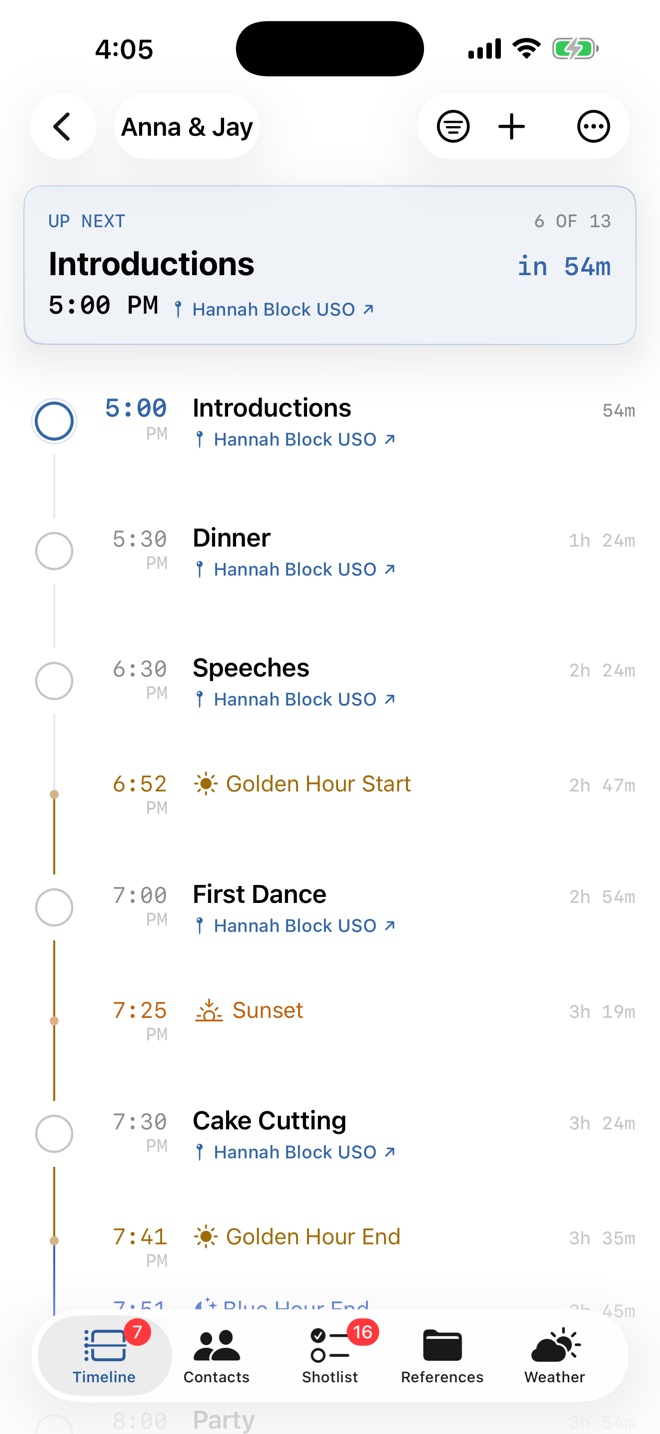
Build the day event by event, then follow along as it happens. The next event and how long until it starts stay at the top, and the ones you’ve finished get checked off.
Drive-time estimates need a network connection. Widget and Live Activity updates are managed by iOS.
The timeline in light and dark mode.
Shot lists Premium
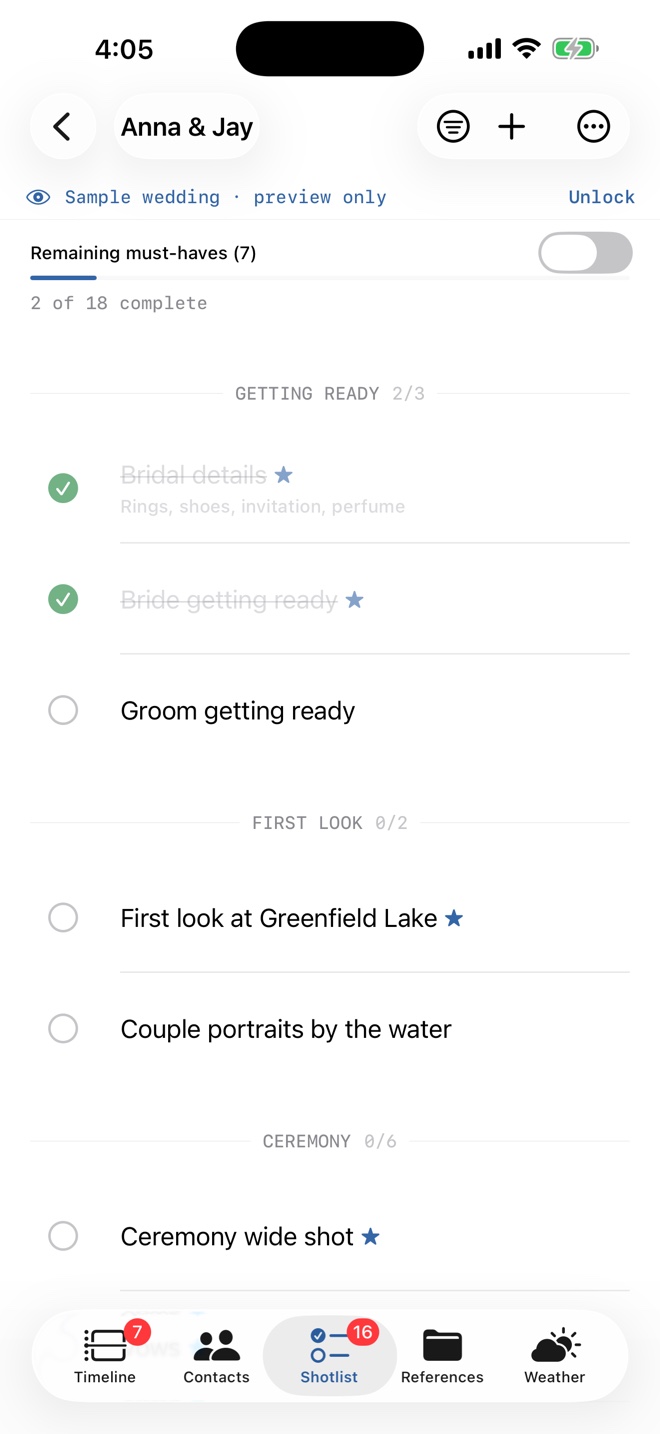
Keep track of the shots your couple cares about, from getting ready to the last dance. Check them off as you go and star the ones you can’t miss.
Light & weather Premium
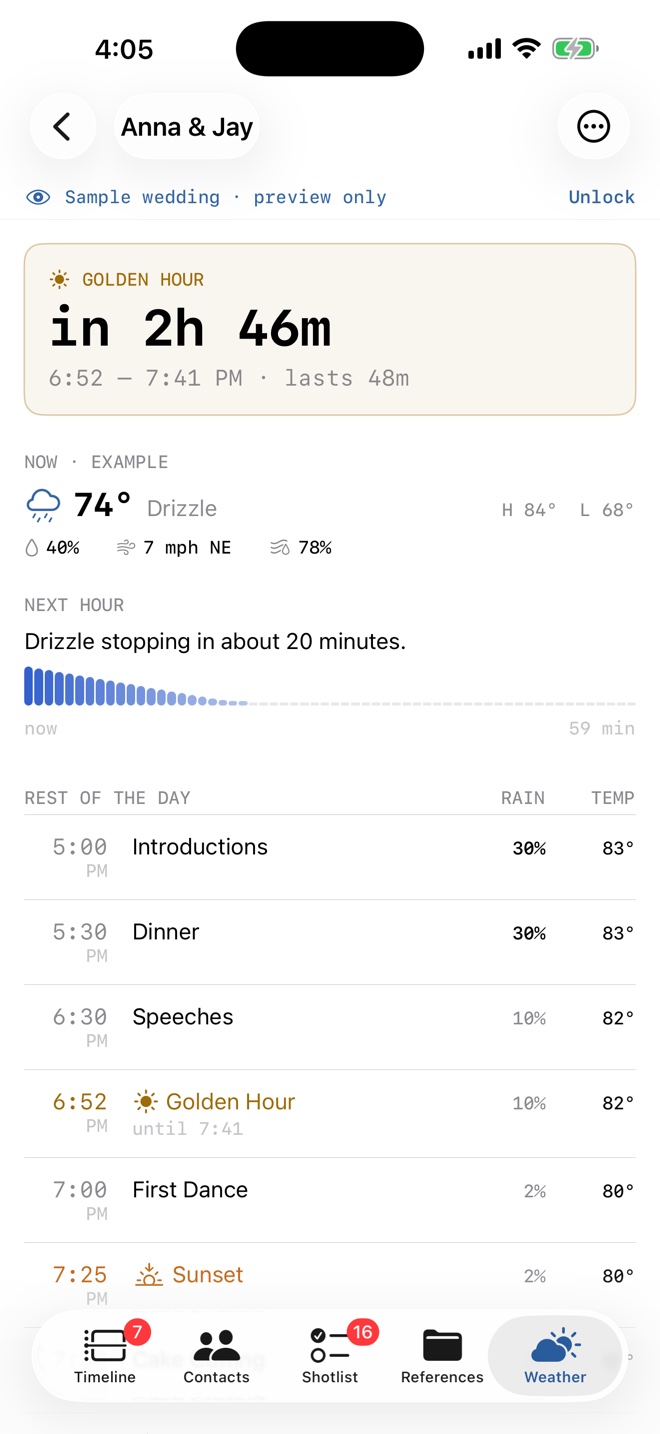
Golden hour, blue hour, and sunset show up right in the timeline, and that part is free. Premium adds a Weather tab with the venue forecast and a golden hour countdown.
Forecasts need a connection and only reach as far ahead as the weather provider allows. The sample wedding shown uses a labeled example forecast.
Contacts & references Premium
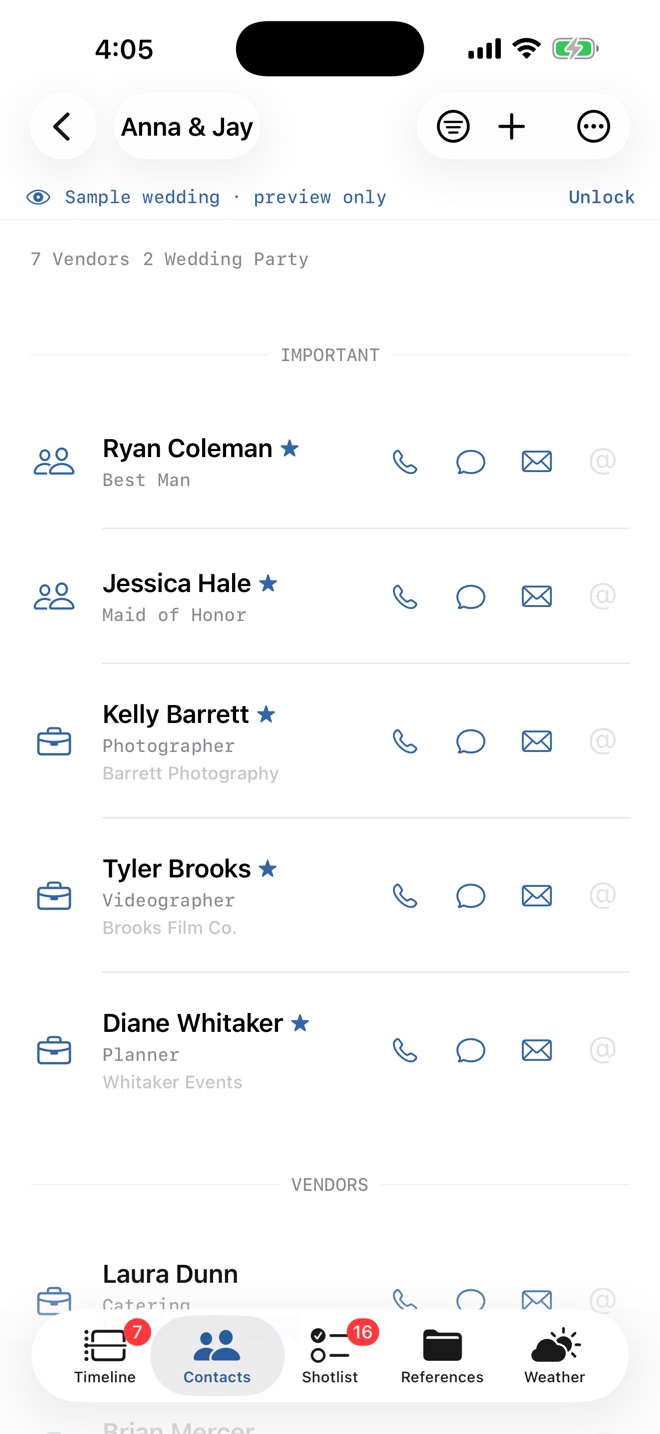
The planner’s number, the timeline PDF, the note about loading in through the side door. It all stays with the right wedding.
Call, text, or email anyone from their card, and copy vendor Instagram handles when it’s time to tag everyone.
Keep venue notes, the planner’s original timeline, and inspiration images in one place. The family formals list is right there when the families start lining up.
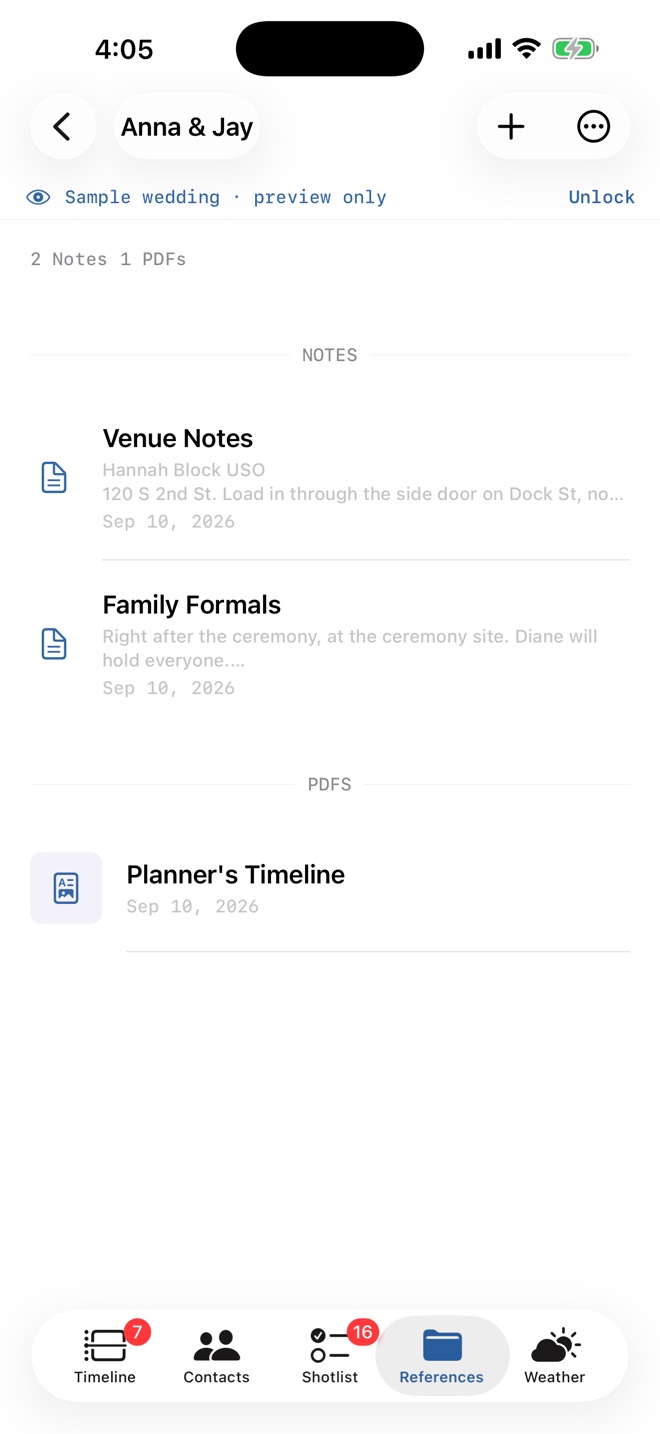
Real Anemone 3 screens with a made-up sample wedding.
Collaboration Premium
Invite someone to a wedding through iCloud and you’ll both work from the same plan. If someone just needs their own version, send them a copy instead.
You can also export a PDF to hand off, or move wedding details in and out as a CSV.
Live collaboration needs iCloud and a connection. An exported or shared copy is separate from the original.
You can plan every wedding with the free version. Premium adds shot lists, contacts, references, weather, and collaboration.
The whole timeline, for every wedding.
Everything in Free, plus:
Monthly, annual, and lifetime options are in the app, which shows current local pricing, billing terms, and any trial you’re eligible for.

I’m Kevin. Anemone started as a weekend project to keep me organized during wedding shoots, mostly because I was tired of pinching and zooming through an 11-page PDF to find the next address while holding a camera.
Version 3 has a clearer timeline and a place for the rest of the details I kept wanting on the day. Your support through subscriptions and tips helps me keep improving Anemone while providing for my family. Thank you for being here. 🤟🏻
Email meWedding photographers, videographers, second shooters, and planners who want the day’s schedule and working details together on their iPhone.
Yes. You can create your own weddings and timelines for free. The included sample wedding also lets you look around the Premium tabs before deciding, but building your own shot lists, contacts, references, and weather needs Premium.
Saved wedding details are stored on your device, so the timeline works offline. Download reference files before you head out. New forecasts, directions, iCloud sync, and collaboration need a connection.
On your device, with iCloud handling sync and collaboration. You choose when to share a wedding or export a copy. The Anemone 3 privacy policy has the details on storage, permissions, and sharing.
iPhone, running iOS 26 or later. If you wear an Apple Watch (watchOS 26 or later), the watch app shows the day’s schedule and lets you check events off as they happen.
Something not working the way you expected? Email me. It comes straight to me.
It helps to include your iPhone model, your iOS version, and the Anemone version from the About section of the app’s Settings.
kevin@silicroncode.com Anemone 3 privacy policySign in with the Apple Account you bought it with. Then open Settings in Anemone, tap Anemone Premium under Account, and tap Restore Purchases. Subscriptions and Lifetime both come back this way. Tips don’t unlock anything, so there’s nothing to restore for those.
In Anemone, open Settings and tap Manage Subscription. You can also do it in the Settings app: tap your name, then Subscriptions. Apple handles the billing, so refunds go through Apple too.
Both of you need to be signed in to iCloud and online. Anemone’s Settings shows your iCloud status under Sync & Sharing. When a shared wedding is stuck, the banner at the top of that wedding says “Not syncing”; tap it to see what went wrong. Opening the app on both phones usually catches things up. If it doesn’t, email me what the banner says.
Anemone on an iPhone with iOS 26 or later, and an iCloud account. They don’t need Premium for the wedding you shared with them. Once they accept the invitation, the wedding shows up in their list and changes go both ways.
Check that both phones are signed in to the same Apple Account and that Sync & Sharing in Anemone’s Settings says your weddings sync through iCloud. A wedding with lots of PDFs and photos can take a few minutes the first time.
Drive times need each venue picked from the address search, so the app knows where it is. The first drive of the day starts from wherever you are, which needs location access. Leave-by alerts are the Travel Notifications switch in Anemone’s Settings, and notifications have to be allowed for Anemone in the Settings app too.
Open Settings in Anemone and tap Restore Sample Wedding under Data. It’s read-only, so you can poke around without breaking anything.
Swipe a wedding in the list and tap Delete, and the deletion syncs to your other devices. The privacy policy explains how to remove Anemone’s iCloud data completely.
The timeline is free. Premium is optional.